Object Diagrams
Object diagrams provide a visual representation of object instances based on the class diagrams in BESSER. They show how specific objects interact, their attribute values, and how associations between them are instantiated.
Palette
The palette includes elements for creating object diagrams. You can drag and drop Objects and model instance-level relationships (links). All elements are tied to the class definitions from your class diagram (or structural model).
Getting Started
Objects
To add an object:
Drag and drop an object element from the left panel onto the canvas.
Double-click the object shape to edit its properties.
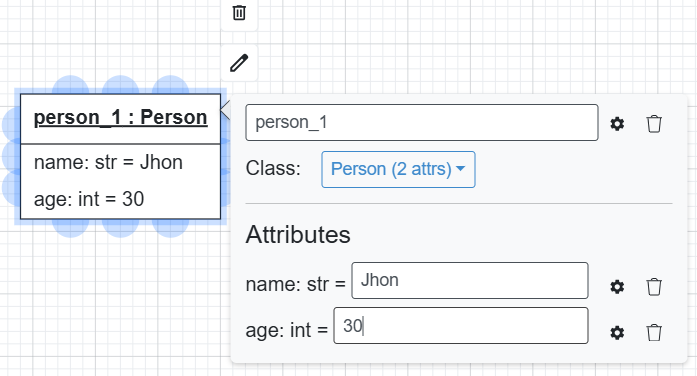
Name: Unique name for the object instance.
Class: The class this object instantiates (must exist in your class diagram).
Attribute Values: The specific values for this instance.
Object Links
To create links between objects:
Click the source object.
Drag from a blue connection point to the target object.
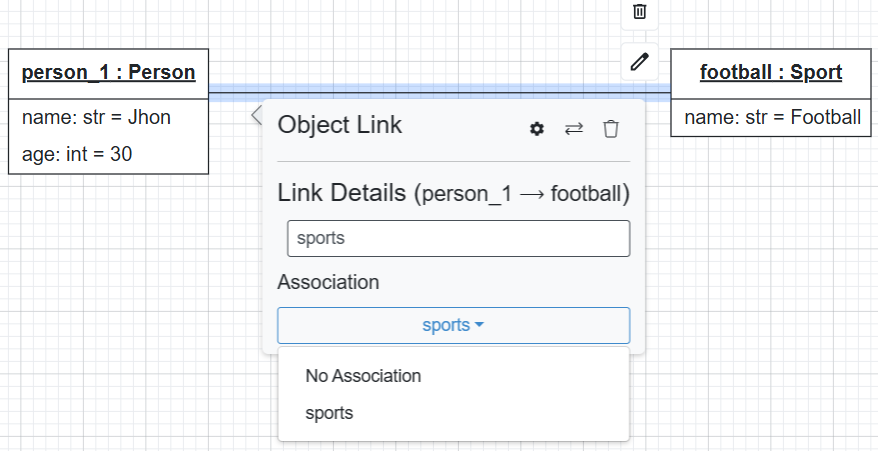
Double-click the link to:
Modify the link name.
Choose the Association this link instantiates.
OCL Constraint Validation
When you click the Quality Check button, the editor validates the object diagram against any OCL constraints defined in the structural model. This allows you to verify invariants, pre-conditions, and post-conditions on real data examples.