Project Management
The Web Modeling Editor organizes your work into Projects. A project acts as a container for all your related diagrams, allowing you to manage complex systems effectively.
Projects live in your browser (localStorage, under keys prefixed
besser_). Nothing is stored on a BESSER server, so clearing site data
removes your projects — export or push to GitHub anything you want to keep.
The first thing you see
On a first visit the editor asks how you want to work:

Choose the visual canvas or the assistant when starting a project.
Model it — the low-code canvas: drag elements from the palette and edit them by hand.
Describe it — the agentic workspace: the AI assistant opens next to the canvas and builds the model from your plain-language description.
Tick Remember my choice to skip the question next time (stored as
besser_preferred_interface). You can also force a mode with a URL
parameter: ?agentic or ?mode=agent opens the assistant workspace,
?mode=model opens the low-code canvas. Either way the model is the same —
the choice only decides which surface opens first, and you can switch at any
time.
Choosing More options opens the project hub, which offers four ways to start:
Create Blank — an empty project with all editors available.
From Spreadsheet — upload one or more
.csv,.xlsxor.xlsfiles and the backend derives a class diagram from them.Import Project — load an exported
.jsonor a B-UML.pyfile.Continue from GitHub — reopen a repository BESSER generated earlier and keep building on it (see Continuing from a GitHub repository).
Recently opened projects are listed underneath.
Creating a New Project

Click the Home icon 🏠 or select File > New Project.
Choose Low-code for the visual canvas or Agentic for the assistant.
Enter the project details:
Name: A descriptive name for your project.
Description: (Optional) A brief summary of the project’s purpose.
Owner: The name of the project owner.
Modeling Perspective: Choose Data Modeler, Agent Developer, Full Web Application, Quantum, or Show All to select the diagrams visible in the sidebar. You can change this later in Settings.
Click Create Project.
Importing Projects
You can import existing projects to continue your work or use templates.
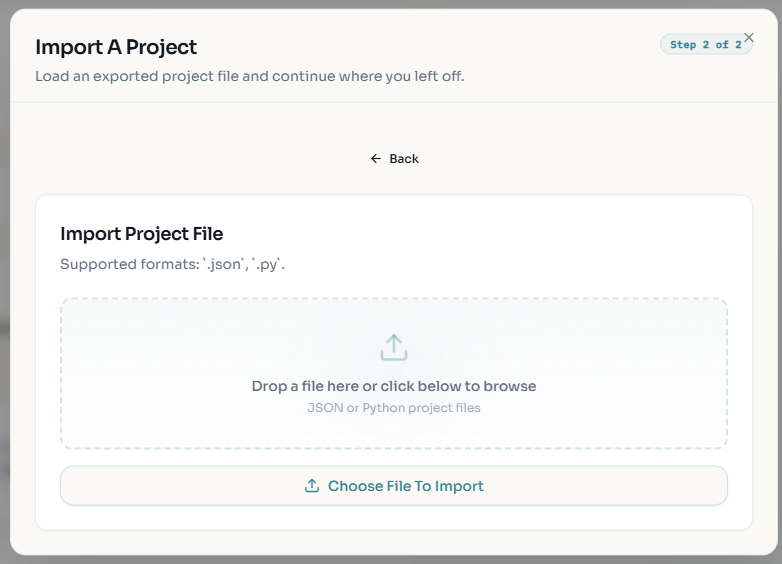
Click File > Import Project.
Select the file to import. Supported formats are: * B-UML (.py): The standard Python-based format for BESSER models. * JSON (.json): The internal format used by the web editor.
Importing always creates a new project — it never overwrites the one you have open.
Individual diagrams can also be imported into the current project from the
File menu; those accept .json, .py, .bpmn and .xml, and are
added as a new tab rather than replacing an existing diagram. Two AI-assisted
importers convert external material into a class diagram:
Import Class Diagram from Image (
.png,.jpg) — reads a picture of a class diagram.Import Class Diagram from KG (
.json,.ttl,.rdf) — reads a knowledge graph.
Both of these write into the active class diagram.
Diagram tabs
Each diagram type has its own tab strip above the canvas, showing only the diagrams of the type currently selected in the left sidebar.
Add: the
+button creates another diagram of the active type. A project holds at most five diagrams per type; the button disappears at the cap.Rename: double-click a tab, type, then Enter (Escape cancels).
Delete: the
×on the tab. The last remaining diagram of a type cannot be closed.
Object and GUI No-Code diagrams additionally show a Linked Diagrams row where you pick the class diagram they draw their types from; object diagrams get a wand button that scaffolds objects from that class diagram. User diagrams show a validation dot and an Edit as Form toggle that swaps the canvas for a guided form.
Exporting Projects
To save your work or use it with other BESSER tools:

Use Export as JSON on the left for a project backup; image exports on the right save only the current diagram.
Click File > Export Project.
The dialog has two halves.
Multiple diagrams — tick the diagram types to include, then:
Export as JSON: the whole project as
<Project_Name>.json. This is the file the import flow reads back.Export as B-UML: the whole project as a single
<project>_besser.py.
Current diagram — requires a UML diagram to be open:
Export as SVG
Export PNG (White) / Export PNG (Transparent)
Export Diagram as JSON
Export Diagram as B-UML (the model is validated first)
Project Settings
You can modify project metadata at any time.
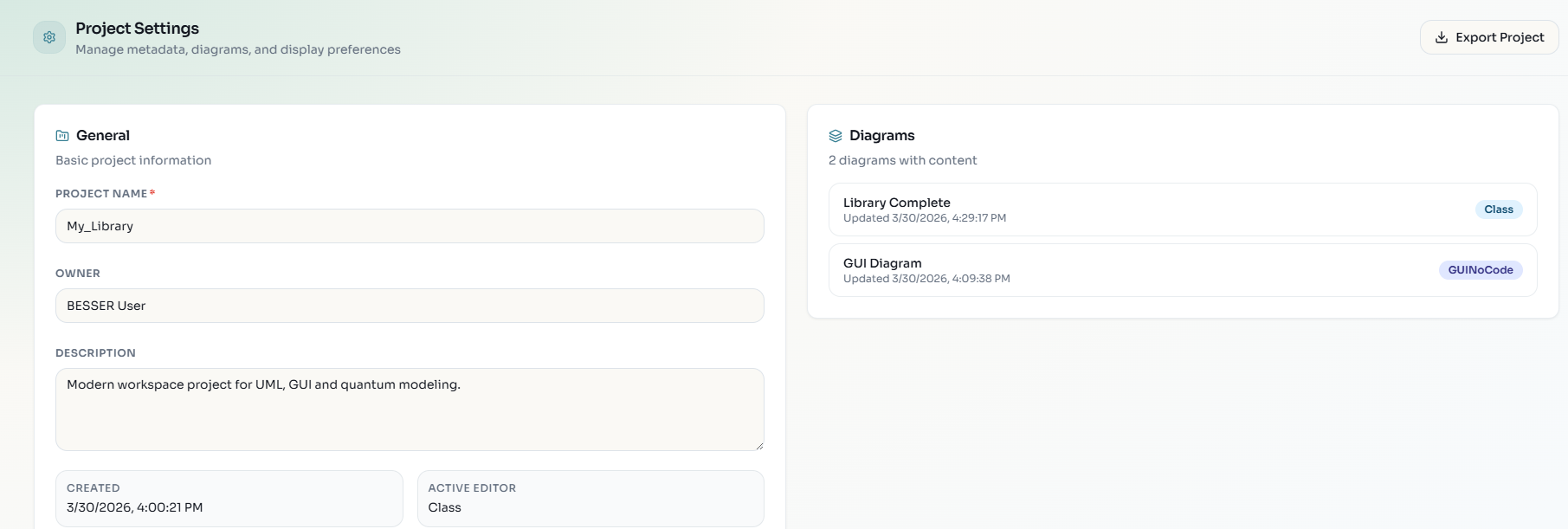
Click the Settings icon ⚙️ in the sidebar.
Update the Name, Description, or Owner.
View the unique Project ID.
The settings page also holds:
Display — show instanced objects, show association names, properties panel, and the class-diagram notation switch (UML or ER; this changes rendering only, not the model).
AI / LLM API Key — see API Keys and the Free Tier.
Diagrams — which diagrams currently hold content, and when each changed.
Modeling Perspectives — which diagram types appear in the sidebar (see Diagram Types).
Language and theme are not here: the language selector and the light/dark toggle live in the top bar.
GitHub Integration
The editor supports syncing projects with GitHub repositories, allowing version control and collaboration on your models.
Connecting to GitHub
Click the GitHub account button in the top bar (or Sync to open the GitHub panel on the right).
You are redirected to GitHub to authorise the BESSER OAuth app, and sent back to the editor signed in. A toast confirms Signed in as ….
The editor never sees your GitHub access token: the BESSER backend performs the
OAuth exchange, keeps the token server-side, and hands the browser only an
opaque session id. That session id is held in this browser tab
(sessionStorage) and expires after 24 hours; your username is kept in
localStorage for convenience. Sign out from the account dropdown in the top
bar.
Saving a Project to GitHub
You can save your project to a new or existing GitHub repository:
New repository: Click Create Repository, enter a name and description, then push. The editor creates the repo and commits your project JSON file.
Existing repository: Click Link Repository, browse your repos, select one, choose a branch and file path, then push. The project JSON is saved to that location.
Each push creates a commit with your project data. The editor also exports raw B-UML Python files
(domain_model.py, agent_model.py) into a buml/ directory alongside the JSON, so your
project can be maintained even without the web editor.
Opening a Previously Synced Project
To reopen a project that was saved to GitHub:
Open the GitHub panel in the sidebar.
Click Link Repository and select the repo and branch where your project is stored.
Browse the repository contents and select the
.jsonproject file.Click Pull to load the project from GitHub into the editor.
The sync connection is remembered per project. Subsequent pushes go to the same repo/branch/file without needing to relink.
Commit History
The GitHub panel shows the last ten commits touching your project file, with author, date and short SHA. Click any earlier commit to restore that version of the project.
Auto-commit
Under Settings in the GitHub panel you can switch on auto-commit and pick an interval (5, 10, 15, 30 or 60 minutes). It is off by default, needs a linked repository, and skips ticks where nothing changed.
Sharing as a gist
Share ▸ Create secret gist publishes the project JSON as a GitHub gist — secret by default — and opens it in a new tab.
Continuing from a GitHub repository
A repository that BESSER itself generated can be reopened from the project hub’s Continue from GitHub card. This imports the stored model as a new project and links the repo, so the Spec-Driven Agent can keep editing the application it built earlier.